

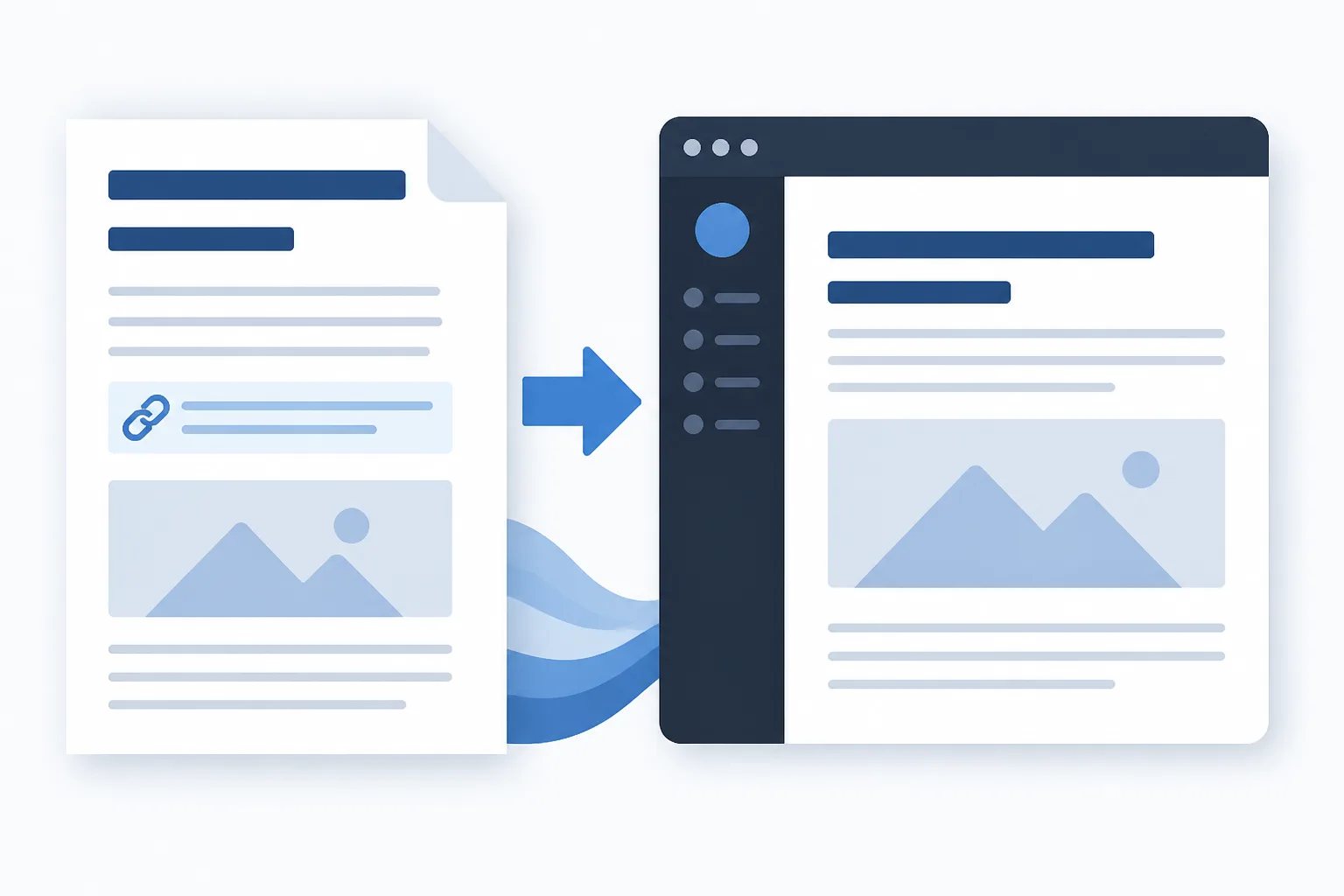
How to Format an Article for WordPress Without Rebuilding It in the Editor
To format an article for WordPress without rebuilding it in the editor, prepare the structure before upload: use a clear heading hierarchy, keep paragraphs and lists purposeful, place links in context, and assemble the post details alongside the body copy. Then preview the published layout before deciding whether to save, schedule, or publish.
The goal is not to add visual treatment to every paragraph. It is to make the article easy to scan, trustworthy to read, and straightforward to review once it reaches your site. A clean structure also reduces the risk of spending extra time correcting heading levels, rebuilding lists, or hunting for missing links after the writing is supposedly complete.
Start with an article structure WordPress can use
Before moving text into WordPress, make sure the article has one clear purpose. Read the title and opening together: a visitor should quickly understand the question the post answers and why it matters. If the title promises a comparison, the body needs meaningful differences and decision factors. If it promises preparation guidance, readers should find usable preparation steps.
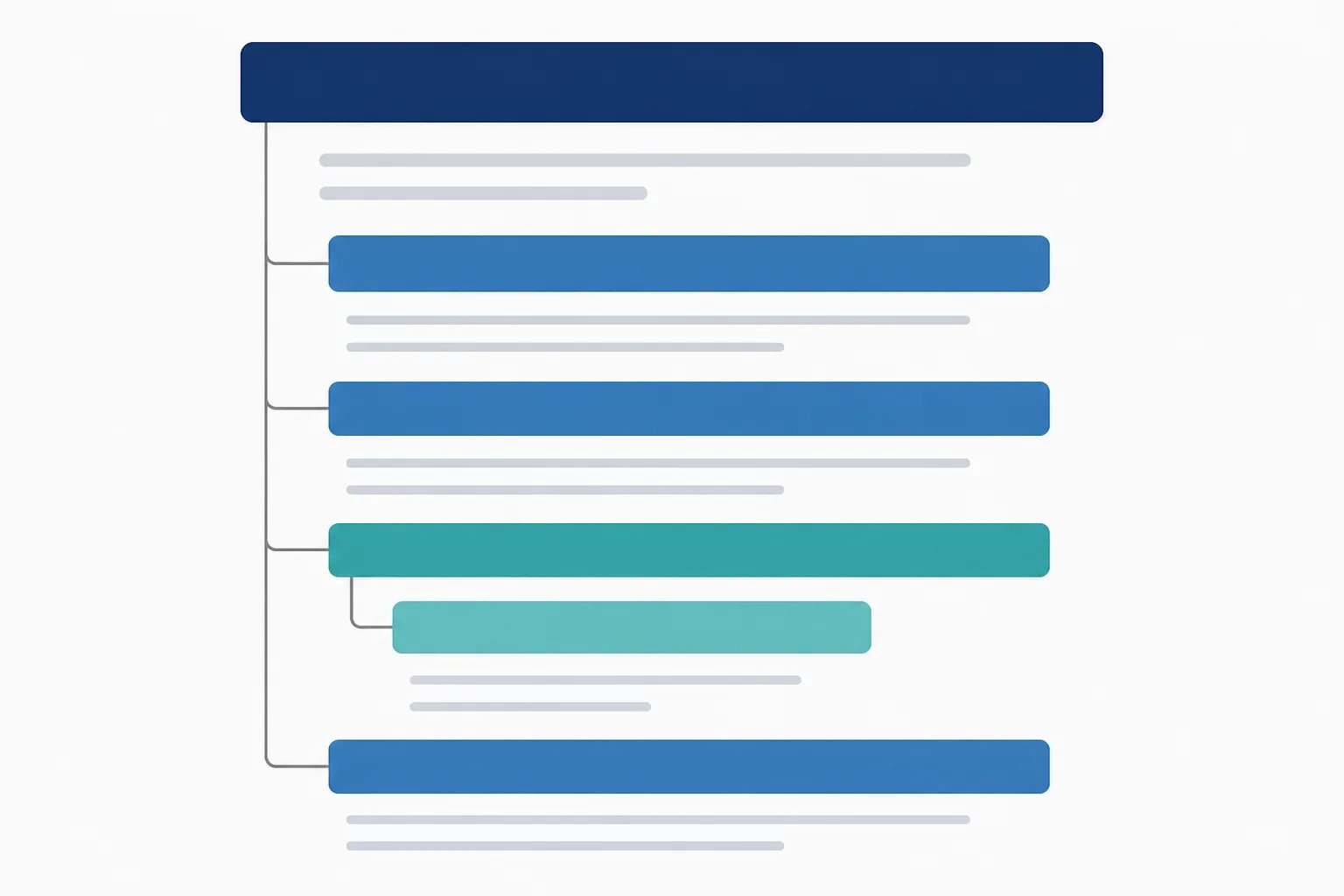
Once that purpose is clear, organize the copy in a hierarchy that matches how readers move through the answer. In a typical WordPress post, the page title is the main heading, so the article body should normally use H2 headings for its major sections. Use H3 headings only when a major section needs a genuine supporting division.
- Title: the page’s main topic and promise.
- H2: a major question, decision point, or stage of the explanation.
- H3: a focused detail that belongs inside an H2 section.
- Paragraphs, lists, and tables: the information that answers the heading.
Do not use headings simply to make a line look larger. A heading should tell a scanning reader what the next section will explain. That makes the post easier to navigate and gives you a useful editing test: if a section does not answer its heading, revise, move, or remove it.
Use formatting to clarify, not decorate
WordPress formatting works best when the format matches the information. Short paragraphs are usually easier to read on a narrow screen than dense blocks of text. Bullets suit related points with no required order, while numbered steps help readers follow a sequence. A table is useful only when readers need to compare the same criteria across two or more options.
For example, a paragraph can explain why a choice depends on timing and upkeep. A compact table can then compare two options by those same factors. Turning that explanation into three separate lists would create more visual movement without making the decision clearer.
Use bold text sparingly for a term or takeaway that deserves emphasis. When every other sentence is bold, readers cannot tell what matters most. The same principle applies to long lists: they should make a task easier to complete, not repeat what the surrounding paragraphs already say.
How to format an article for WordPress with useful links
Links are part of the reader’s path through your website, not an afterthought. Add an internal link when it answers a logical follow-up question, such as how your process works, what an example looks like, or what a reader should consider next. The clickable words should describe the destination clearly.
For instance, a business that wants to understand the drafting process can see how Gordon works. A reader who needs a clearer overview of the components around the article body can read our guide to what WordPress-ready content includes. Both links have a job; neither is there simply to repeat a phrase.
Before publishing, test each destination in preview mode. Check that the link opens the intended page, the anchor text remains accurate, and the link does not pull the reader away from the article before its main answer is complete. Remove a link if it is vague, broken, or unrelated to the sentence around it.
Prepare the post details at the same time as the copy
A finished article body is not always a finished WordPress post. Depending on the theme and tools your site uses, you may also need a title, slug, meta description, excerpt, categories or tags, featured image, alternative text, and a relevant call to action. Preparing these details alongside the copy helps them tell the same story as the article itself.
A title should accurately set expectations. A slug should be short and readable. A meta description and excerpt should summarize the page honestly rather than make claims the article cannot support. The featured image should give the topic context, and its alternative text should describe the visual rather than repeat a target phrase.
Accuracy safeguard
A polished draft still needs a business fact check
Review every statement made in your business’s voice before publication. Clear formatting improves presentation, but it does not confirm that service details, policies, prices, availability, or calls to action are current.
Keep business facts separate from general educational guidance during this stage. A post can explain common decision factors or terminology, but statements about a business’s services, locations, prices, policies, availability, methods, or results need confirmation. This is especially important when an article is drafted with AI: polished wording is not evidence that a business-specific detail is current.
Use a focused handoff before opening the editor
A simple handoff process prevents the WordPress editor from becoming the place where you rediscover the article’s structure. Complete the content package first, then use the editor to check how that package displays on the actual site.
WordPress handoff
A six-point handoff before you upload
Complete these items before treating an article as ready for the WordPress editor.
- Confirm the title, opening, headings, and conclusion answer the same reader question.
- Apply a logical heading hierarchy, with H2 sections and H3 subsections only where needed.
- Use short paragraphs, lists, and tables only when they improve clarity.
- Add only relevant internal links and check that anchor text describes each destination.
- Prepare the post details your site uses, including the slug, description, excerpt, image, and alternative text.
- Preview the finished page and test links before publishing or scheduling.
At Gordon, we create WordPress-ready article drafts from the business details, writing style, approved pages, and call to action you provide. Our drafts include structured HTML, title and metadata suggestions, featured image direction, and relevant internal links when approved destinations are available. You remain in control of the final version and can edit the draft before choosing what happens next.
Preview the page readers will actually see
Even well-structured content deserves a preview after it enters WordPress. Copy can pick up extra spacing, headings can land at the wrong level, lists can lose indentation, and wide tables or large images can be difficult to use on a phone.
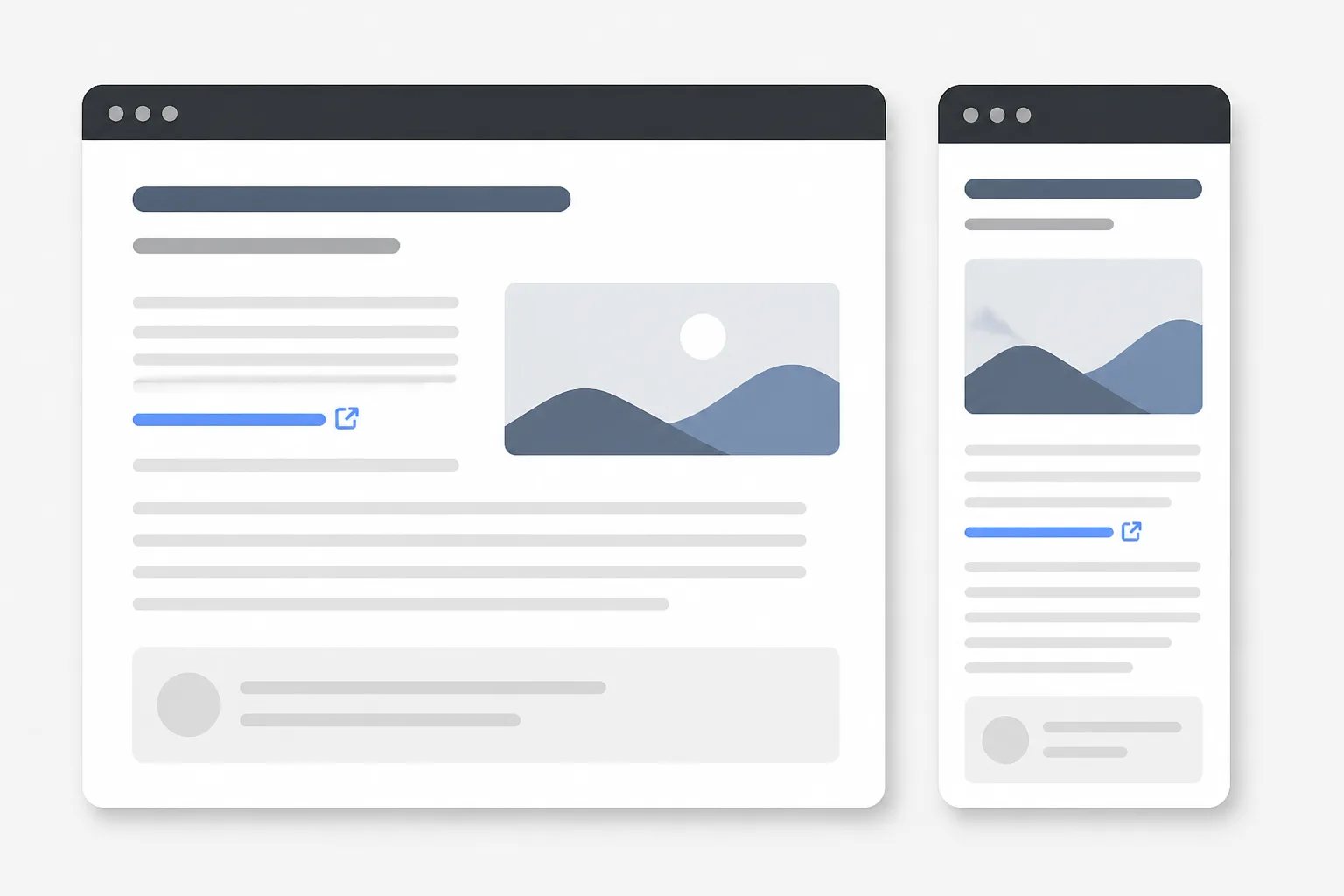
Start with the first screen. The title, featured image, opening, and first heading should make the page’s purpose clear. Then scan the full post for broken paragraph spacing, hard-to-read tables, image sizing issues, and links that are difficult to notice or open the wrong destination. If your workflow allows it, inspect the page on a larger screen and a narrow screen.
If you are using AI-assisted copy, a separate fact-checking pass is also worthwhile. Our guide on reviewing an AI-written article before publishing explains how to verify business claims, reader value, tone, links, and post details without trying to catch everything in one read.
Keep publishing decisions separate from writing decisions
Formatting an article for WordPress makes publishing easier, but it does not remove editorial judgment. Review the page, correct what needs attention, and then decide whether it is ready to publish, save as a draft, or schedule for a future date. A future date does not make an unfinished article ready for readers.
The most dependable workflow is simple: build a clear article structure, prepare the supporting post details, confirm the actual page display, and publish only when the result accurately represents your business. That approach leaves less cleanup for later and gives readers a clearer experience from the first visit.
Helpful answers
Frequently Asked Questions
Create a structured draft for your WordPress workflow
Turn a focused topic into a review-ready article with the publishing details considered from the start.